



 Healthcare App Development Services
 Real Estate Web Development Services
 E-Commerce App Development Services
 E-Commerce Web Development Services
 Blockchain E-commerce Development Company
 Fintech App Development Services
 Fintech Web Development
 Blockchain Fintech Development Company
 E-Learning App Development Services
 Restaurant App Development Company
 Mobile Game Development Company
 Travel App Development Company
 Automotive Web Design
 AI Traffic Management System
 AI Inventory Management Software
 AI Software Development
  AI Development Company
  AI App Development Services
  ChatGPT integration services
  AI Integration Services
  Generative AI Development Services
  Natural Language Processing Company
 Machine Learning Development
  Machine learning consulting services
  Blockchain Development
  Blockchain Software Development
  Smart Contract Development Company
  NFT Marketplace Development Services
  Asset Tokenization Company
 DeFi Wallet Development Company
 Mobile App Development
  IOS App Development
  Android App Development
  Cross-Platform App Development
  Augmented Reality (AR) App Development
  Virtual Reality (VR) App Development
  Web App Development
  SaaS App Development
 Flutter
  React Native
  Swift (IOS)
  Kotlin (Android)
  Mean Stack Development
  AngularJS Development
  MongoDB Development
  Nodejs Development
  Database Development
 Ruby on Rails Development
 Expressjs Development
  Full Stack Development
  Web Development Services
  Laravel Development
  LAMP Development
  Custom PHP Development
  .Net Development
  User Experience Design Services
  User Interface Design Services
  Automated Testing
  Manual Testing
  Digital Marketing Services
 Ride-Sharing And Taxi Services
 Food Delivery Services
 Grocery Delivery Services
 Transportation And Logistics
 Car Wash App
 Home Services App
 ERP Development Services
 CMS Development Services
 LMS Development
 CRM Development
 DevOps Development Services
 AI Business Solutions
 AI Cloud Solutions
 AI Chatbot Development
 API Development
 Blockchain Product Development
 Cryptocurrency Wallet Development
 About Talentelgia
  Our Team
  Our Culture
 Healthcare App Development Services
 Real Estate Web Development Services
 E-Commerce App Development Services
 E-Commerce Web Development Services
 Blockchain E-commerce
Development Company
Blockchain E-commerce
Development Company Fintech App Development Services
 Finance Web Development
 Blockchain Fintech
Development Company
Blockchain Fintech
Development Company E-Learning App Development Services
 Restaurant App Development Company
 Mobile Game Development Company
 Travel App Development Company
 Automotive Web Design
 AI Traffic Management System
 AI Inventory Management Software
 AI Software Development
 AI Development Company
 ChatGPT integration services
 AI Integration Services
 Machine Learning Development
 Machine learning consulting services
 Blockchain Development
 Blockchain Software Development
 Smart contract development company
 NFT marketplace development services
 IOS App Development
 Android App Development
 Cross-Platform App Development
 Augmented Reality (AR) App
Development
Augmented Reality (AR) App
Development Virtual Reality (VR) App Development
 Web App Development
 Flutter
 React
Native
React
Native Swift
(IOS)
Swift
(IOS) Kotlin (Android)
 MEAN Stack Development
 AngularJS Development
 MongoDB Development
 Nodejs Development
 Database development services
 Ruby on Rails Development services
 Expressjs Development
 Full Stack Development
 Web Development Services
 Laravel Development
 LAMP
Development
LAMP
Development Custom PHP Development
 User Experience Design Services
 User Interface Design Services
 Automated Testing
 Manual
Testing
Manual
Testing About Talentelgia
 Our Team
 Our Culture
Downloaded a file with a .jar extension and now you’re stuck wondering what to do with it? Don’t worry you’re definitely not alone. A lot of people run into this exact situation because .jar files don’t behave like regular files, such as PDFs, Word documents, or images. You double-click them expecting something to open… and nothing happens. That’s when the confusion starts.
The reason is simple: a .jar file isn’t just a normal file it’s actually a Java-based program. And unlike common file types that open with built-in apps, .jar files need a specific environment (Java) to run properly. If that environment isn’t installed or configured correctly, your computer won’t know what to do with the file.
The good news? There’s nothing complicated about fixing it. Once you understand what a .jar file really is and what it requires to run, opening it becomes straightforward. In most cases, it’s just a matter of installing Java or running a simple command.
So if you’re feeling stuck right now, relax. In the next few sections, we’ll break everything down step by step in plain, easy-to-follow language, no technical jargon, no complicated explanations just clear instructions to help you open your .jar file without frustration.
First, What Is a .JAR File?
A .JAR (Java Archive) file is basically a package that contains a Java program. Think of it like a zipped folder that holds everything a Java app needs to run — code, images, settings, and more.
You’ll usually see .jar files used for:
- Java-based software tools
- Small desktop applications
- Game files (for example, Minecraft uses Java)
- Developer utilities and plugins
But here’s the important part: .jar files only work if Java is installed on your computer.
Also Read:- Best Java Frameworks
Step 1: Make Sure Java Is Installed
Before you try opening anything, check whether Java is already on your system.
You’ll need either:
- Java Runtime Environment (JRE), or
- Java Development Kit (JDK)
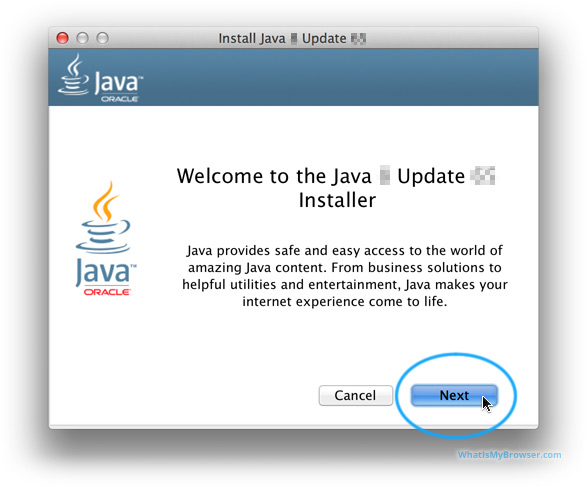
You can download it from the official website of Oracle Corporation.After installing Java, your computer will finally “understand” what a .jar file is supposed to do.
How to Open .JAR Files on Windows?
Opening a. jar file on Windows is fast and straightforward if, that is, Java is installed. In most cases, you can execute it as if it were any other application. If your system is correctly configured, the file will open within seconds. And even if not, here’s an easy fix you can give a shot.
The Simple Way (Double-Click)
- Install Java.
- Right-click the .jar file.
- Click Open with.
- Choose Java(TM) Platform SE Binary.
- Double-click the file.
If everything is set up correctly, the program should open instantly.
If That Doesn’t Work (Command Prompt Method)
Sometimes Windows doesn’t link .jar files properly. In that case:
- Press Windows + R
- Type cmd and hit Enter
- Go to the folder where your file is located
- Type:
java -jar filename.jarPress Enter — and that should launch it.
How to Open .JAR Files on Mac?
On Mac, it’s usually even easier.
Just Double-Click
If Java is installed, simply double-click the file. It should run automatically.
If It Doesn’t Open
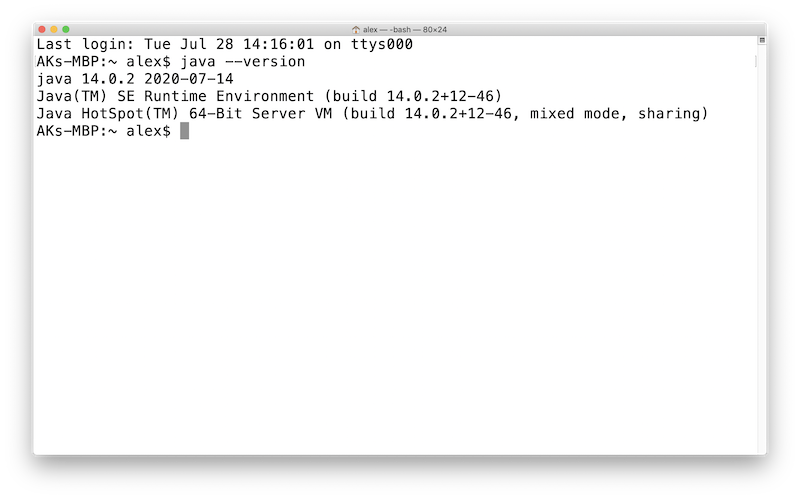
1. Open Terminal
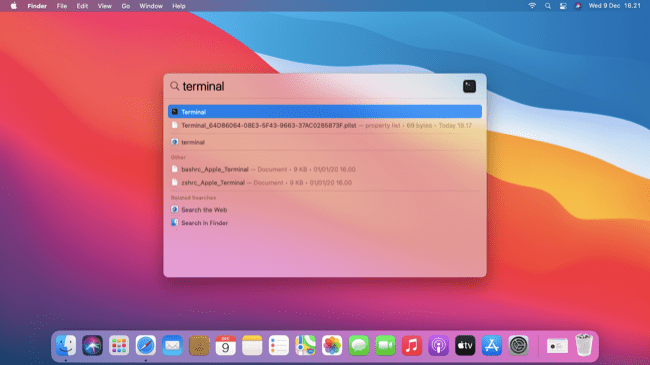
Type:
java -jar filename.jar2. Hit Enter — and you’re good to go.
How to Open .JAR Files on Linux?
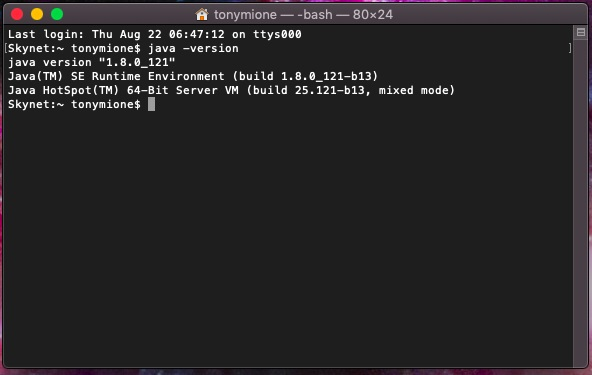
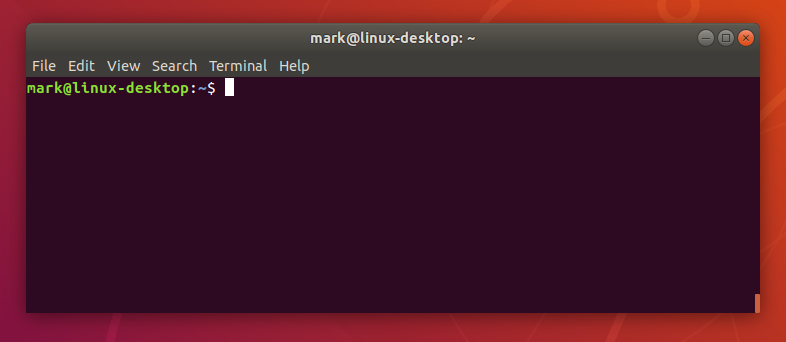
Linux users often already have Java installed. To check, open Terminal and type:
java -version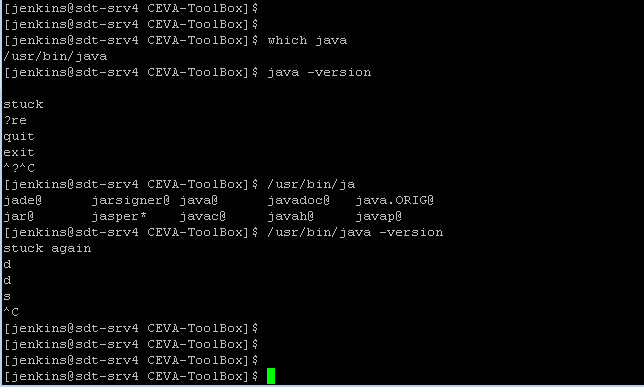
If Java is installed, you’ll see the version number.
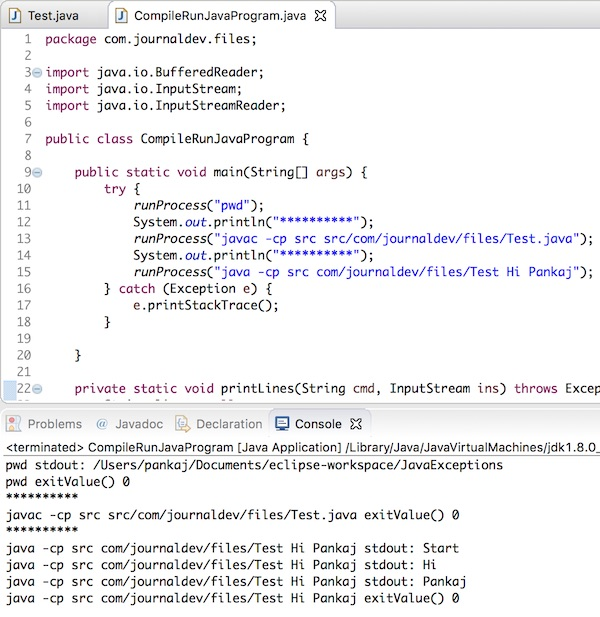
To run your file:
java -jar filename.jarIf Java isn’t installed, install OpenJDK first, then try again.
What If You Just Want to Extract the File?
Here’s something many people don’t realize:
A .jar file is basically a ZIP file in disguise.
If you only want to see what’s inside:
- Rename the file from .jar to .zip
- Extract it using tools like WinRAR or 7-Zip
Now you can browse all the internal files without running the program.
Common Problems (And Easy Fixes)
Nothing Happens When You Double-Click
Most likely, Java isn’t installed correctly — reinstall it and try again.
“Java Is Not Recognized”
This usually means Java isn’t added to your system PATH. Reinstalling Java typically fixes this automatically.
“Invalid or Corrupt JAR File”
The file might not have downloaded properly. Try downloading it again from a trusted source.
A Quick Security Reminder
Because .jar files can run programs, they can also contain harmful code. So:
- Only download from trusted websites
- Avoid unknown email attachments
- Scan files if you’re unsure
It’s always better to be safe.
Final Thoughts
Opening a .jar file isn’t complicated — it just requires one key thing: Java installed on your system.

Once Java is set up, you can:

Double-click the file
Use the command line
Or extract it like a ZIP file















 Write us on:
  Business queries:
  HR:
HR: 


